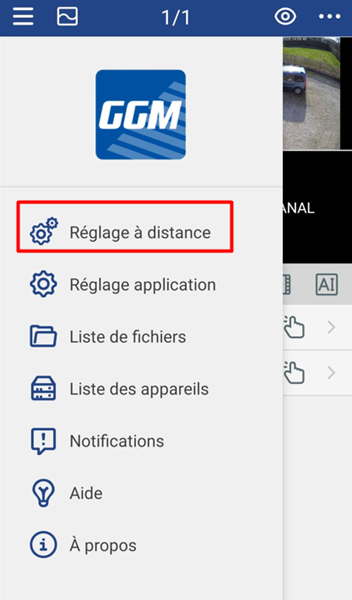
To access AI configurations, go to the "Remote Settings" menu from your app.
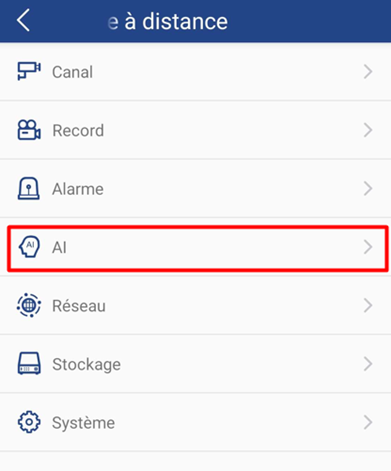
Then select the "AI" menu.
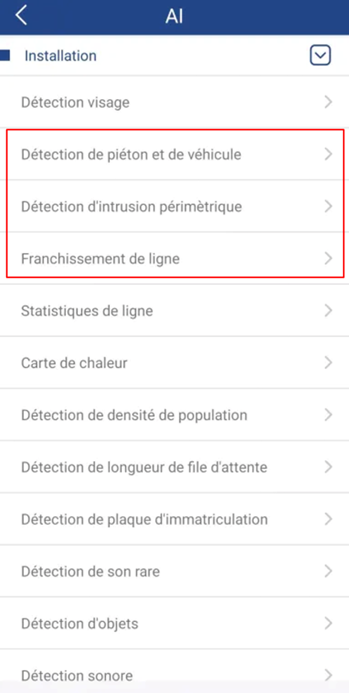
From this menu, select "Installation" to display the drop-down menu. Here you will find the three main smart features (compatible with most Gigamedia cameras):
- Human and vehicle detection
- Perimeter intrusion detection
- Line crossing
Configuring Smart Functions
1) Human and vehicle detection
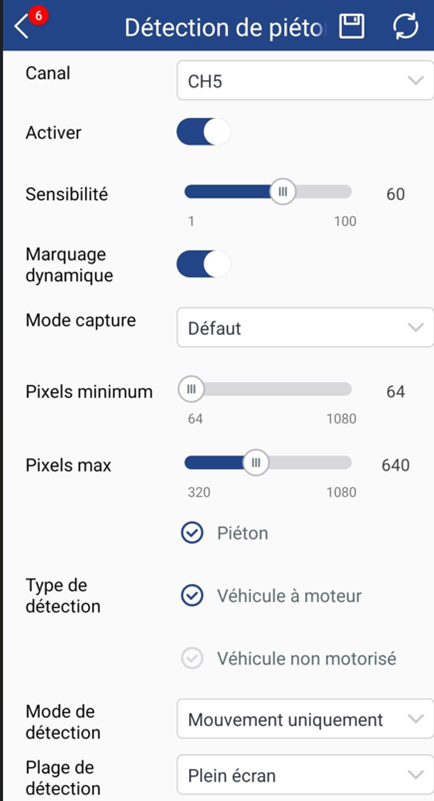
The calendar allows you to select the activation periods of the function.
Sensitivity defines the responsiveness of the device: the higher the value (close to 100), the faster the detection will be, but the greater the risk of false detections.
Dynamic tagging displays detected people or vehicles on the screen by framing them.
The capture mode allows you to choose between real-time or interval triggering (with a defined interval between each detection).
The maximum and minimum pixel values define the size of the targets to be detected:
- Minimum pixel = smallest size a human or vehicle can be on the screen (very distant
objects).
- Maximum pixel = the largest size a human or vehicle can be on the screen (very close
objects).
We recommend using a monitor connected to the recorder to set this option: this allows for more accurate viewing.
Detection Type: Allows you to select the target (human, vehicle, and/or non-motorized vehicle).
Detection Mode: Defines whether the detection should be triggered on a stationary (static) or moving target.
Detection Range: Determines the area where the recorder should detect. By default, detection covers the entire screen; choose "Custom" to define a specific area.
Rules: Allows you to set the detection line or area (visible only if the detection range
is set to "Custom").
2) Perimeter intrusion
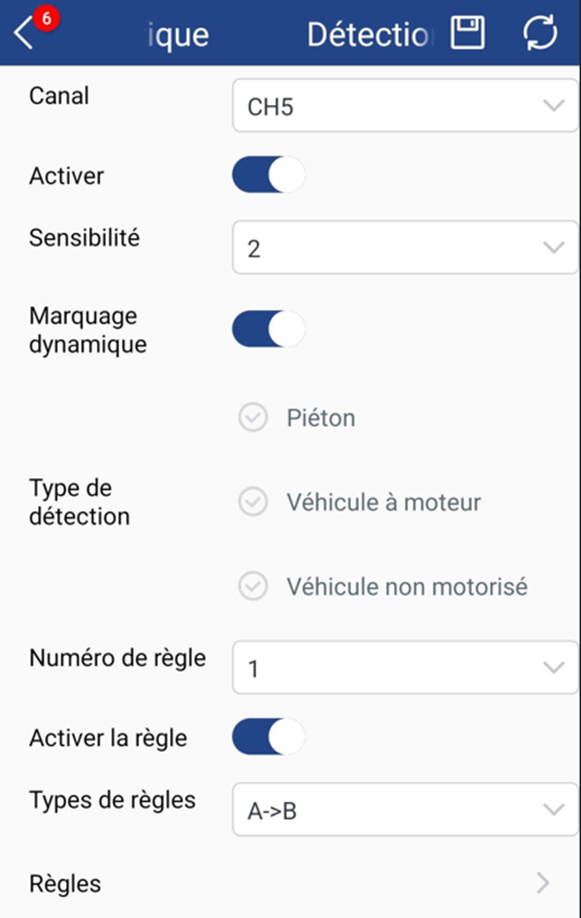
The rule number allows you to define up to four rules or four zones (selecting a number opens the configuration of the corresponding rule).
The rule type defines the direction of detection:
A->B: The function triggers when a human or vehicle enters the area.
A<-B: The function triggers when a human or vehicle leaves the area.
A<->B: The function triggers when a human or vehicle enters or leaves the area.
The "Adjustment" button allows you to switch to zone definition mode.
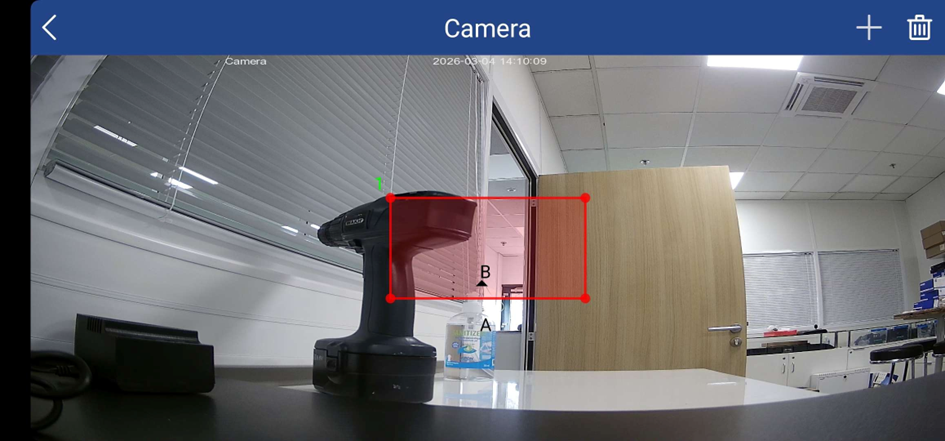
On this page, you can add a zone by pressing the "+" button or remove it by tapping the trash can icon.
Once the area is added, you can move it by pressing and holding it while dragging.
To change the shape of the area, you will have to press on the red dots at each end of the area, then move your finger while holding down on the screen to place the dots in the desired places.
Please be careful, however, not to place the pasted area at the edges of the image, as this may prevent the detection of entry into the area.
3) Line Departure Detection
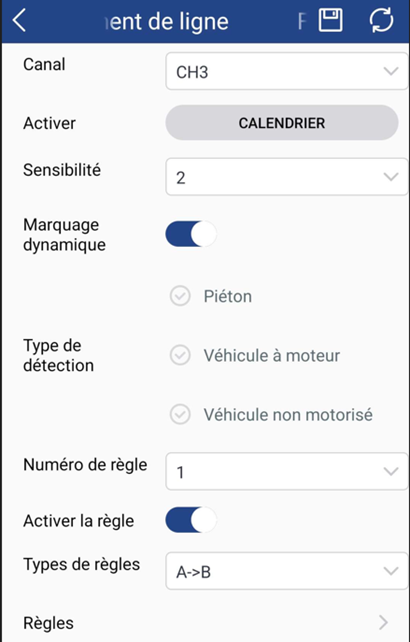
Version prior to 2023
Post-2024 version (2424 included)
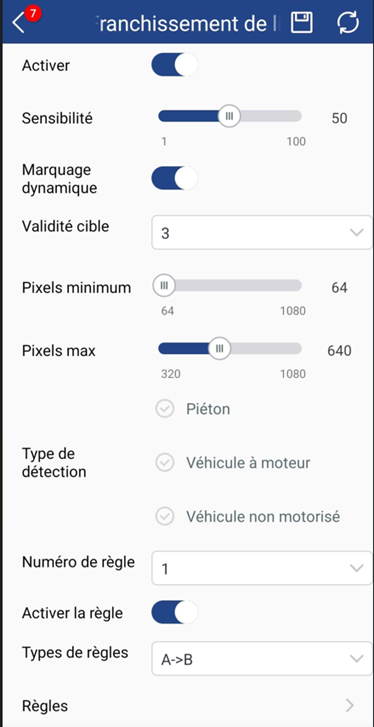
The configuration options are identical to those of perimeter intrusion detection or pedestrian/vehicle detection: only the setting of the rules will change. However, we recommend setting up this smart feature from a screen connected directly to the recorder for post-2024 versions.
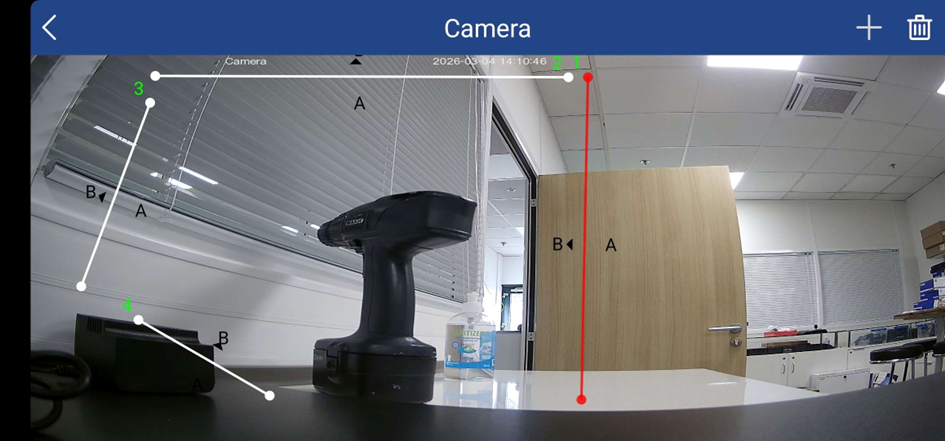
For line overflow, we define a detection line and not a zone. It is therefore important to ensure that it is positioned correctly: if the line is placed on the edge of the screen, the intelligent detection may not correctly recognise the crossing, as with perimeter intrusion. The same goes for inputs: we recommend shifting the line of an opening to avoid detection errors
Was this article helpful?
That’s Great!
Thank you for your feedback
Sorry! We couldn't be helpful
Thank you for your feedback
Feedback sent
We appreciate your effort and will try to fix the article