Valid for the current range of GIGAMEDIA IP recorders *
GIGAMEDIA: Check your hard drive for proper operation
Preamble : By default, when you purchase a GIGAMEDIA IT KIT, the hard drive is already installed and ready to use.
On the other hand, if you buy a recorder on its own, there is no hard drive.
You are free to use a hard drive according to your needs and to make sure that it is well recognized and formatted.
- Access to the GUI
In the graphical interface, a pictogram could appear on the main window, at the bottom to indicate the presence or not of your hard drive:
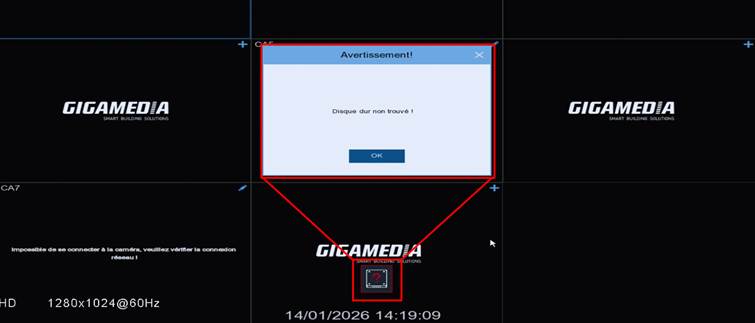
 : Hard drive not detected.
 : Hard drive detected but not formatted.
In the Menu, find Configure, then Storage, and then Disk.
Check the status of your hard drive in the Status column :
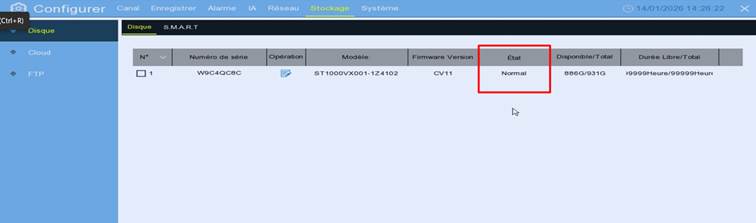
- If there is no row in the table: Your hard drive is not recognized or faulty
- If its status is Normal: Your hard drive is operational and recording.
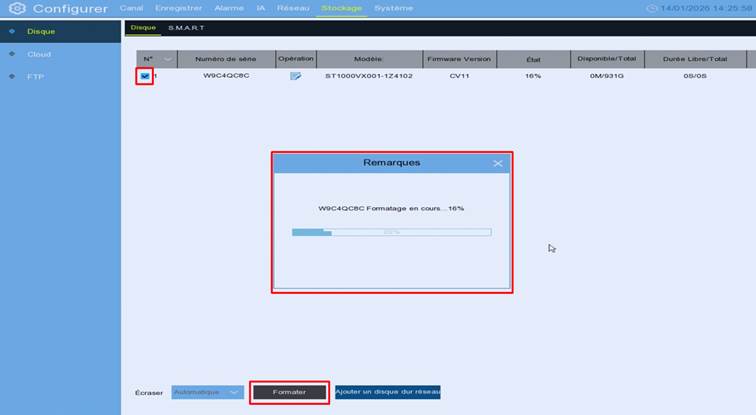
- If its status is Unformatted: You will need to format your hard drive by selecting it and then clicking on the FORMAT button.
A warning message will tell you that formatting will erase all data from the hard drive. Select: Format the hard drive completely and then confirm by specifying the admin password.
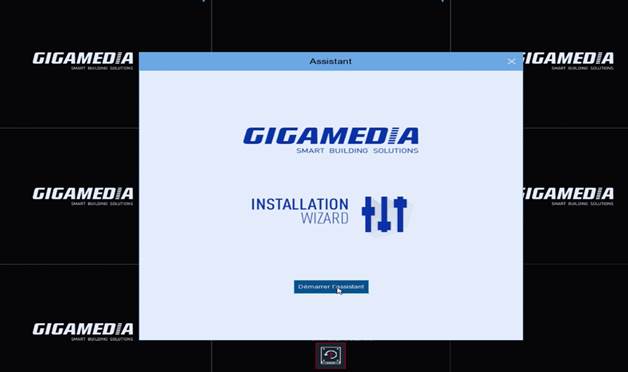
Note: When using the hard drive for the first time, you can perform the same operation of checking and formatting the hard drive, through the startup wizard.
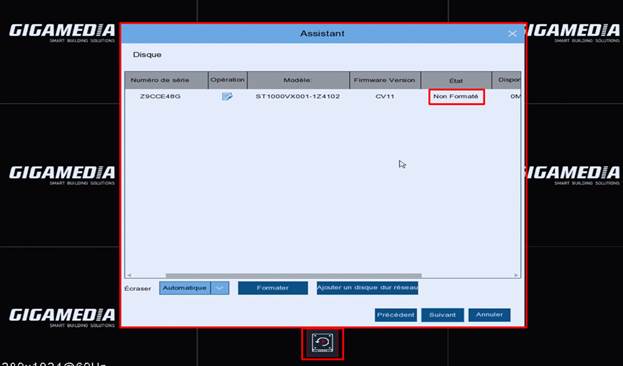
- Checking the front of your recorder
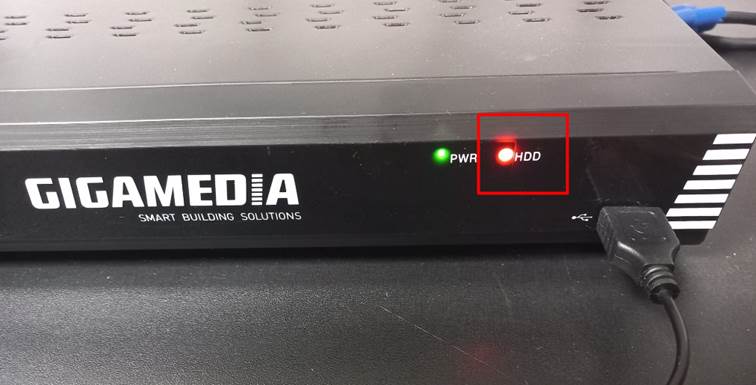
The HDD LED corresponds to the hard drive:
- Off : Hard drive not detected.
- Fixed : hard drive detected but not recording
- Flashing : Hard drive detected and being recorded.
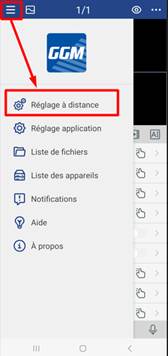
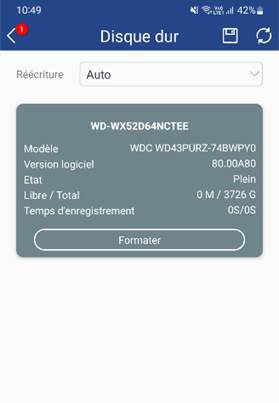
- Verification via the GGM VIEW app
Main menu (top left) then Remote Adjustment.
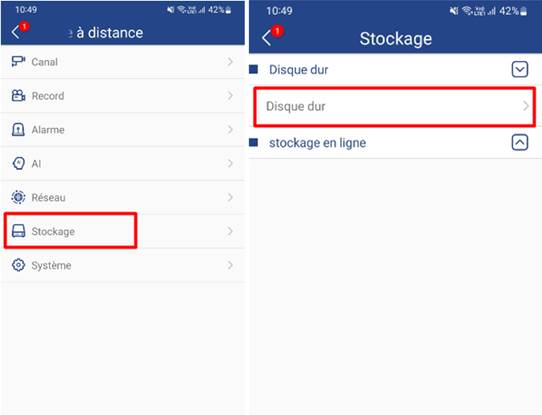
Select your recorder and then Menu Storage and Hard Drive
----------------------------------------------------
* Depending on the model and firmware version used :
GGM KITIP24C5MP
GGM KITIP24CD5MP
GGM KITIP48C5MP
GGM KITIP48CD5MP
GGM KITIP48C4MPA
GGM KITIP48CD4MPA
GGM KITIP48CDM5MP
GGM KITIP816C5MP
GGM KITIP816CDM5MP
GGM NVRL0104
GGM NVRL0104P
GGM NVRL0108P
GGM NVR0108PA
GGM NVR0208P
GGM NVR020808P
GGM NVR0216P
GGM NVR021608P
GGM NVR021616P
GGM NVR0232
GGM NVR023216P
GGM NVR0416
GGM NVR0432
GGM NVR043216P
GGM NVR0816
GGM NVR081616P
GGM NVR083216P
GGM NVR0832
GGM NVR16
GGM NVR32
GGM NVRE0104P
GGM NVRE0108P
Was this article helpful?
That’s Great!
Thank you for your feedback
Sorry! We couldn't be helpful
Thank you for your feedback
Feedback sent
We appreciate your effort and will try to fix the article