Valid for the current range of GIGAMEDIA IP recorders *
Checking network status on a GIGAMEDIA Recorder

In general network problems on devices are related to IP addressing.
You have two ways to solve this problem :
- By entering a static IP address (be careful, however, not to have two identical addresses and that the address is on the right network)
- By activate the DHCP mode (which will put the IP address automatically)
From the recorder interface
To check the proper functioning of the networks from the screen connected to the recorder you must look at the logo in the form of a small computer at the bottom right of the screen, this logo shows you if the device is connected or not.

You have three logos:

This indicates that it does not detect network
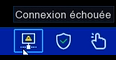
This indicates that it detects a network but cannot connect to the internet
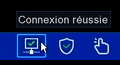
This icon indicates that the device is connected to the network with the internet
Once you check if your connection is not working, you must go to the configured menu and then to network and make sure that DHCP is enabled or that the IP configuration is correct.

If this does not work after DHCP activation please check the connection of your device otherwise please disable DHCP and enter a fixed IP address for your device (fill in advance the IP distribute on your network).
From the web interface
Here, you can change the IP address (to automatic / dhcp or static).
You can also look at the status of your network in system and information you would then have "connected" if your device has well internet otherwise it will display "Failed connected"

From a remote interface
In general if this interface works on remote control (so on an external network), however it happens that the interface does not work in a local network in this case you must check the IP addressing.
GGM view
To access the network settings, you need to access the remote setting select your device then go to Network you could later activate or not the dhcp and change the IP address.

Surveillance client
To access the options you must click on this button (wrench)
Then go to the network settings in order to change dhcp or static type and change the ip address

VMS PRO
The configuration interface changes depending on the port if you are on port 80 please see how to set up via the web interface [same interface]
To access the configuration you must click on the nut symbol

Then in the network settings you could choose whether or not to enable DHCP and/or choose the ip address

----------------------------------------------------
* Depending on the model and firmware version used :
GGM KITIP24C5MP
GGM KITIP24CD5MP
GGM KITIP48C5MP
GGM KITIP48CD5MP
GGM KITIP48C4MPA
GGM KITIP48CD4MPA
GGM KITIP48CDM5MP
GGM KITIP816C5MP
GGM KITIP816CDM5MP
GGM NVRL0104
GGM NVRL0104P
GGM NVRL0108P
GGM NVR0108PA
GGM NVR0208P
GGM NVR020808P
GGM NVR0216P
GGM NVR021608P
GGM NVR021616P
GGM NVR0232
GGM NVR023216P
GGM NVR0416
GGM NVR0432
GGM NVR043216P
GGM NVR0816
GGM NVR081616P
GGM NVR083216P
GGM NVR0832
GGM NVR16
GGM NVR32
GGM NVRE0104P
GGM NVRE0108P
Was this article helpful?
That’s Great!
Thank you for your feedback
Sorry! We couldn't be helpful
Thank you for your feedback
Feedback sent
We appreciate your effort and will try to fix the article