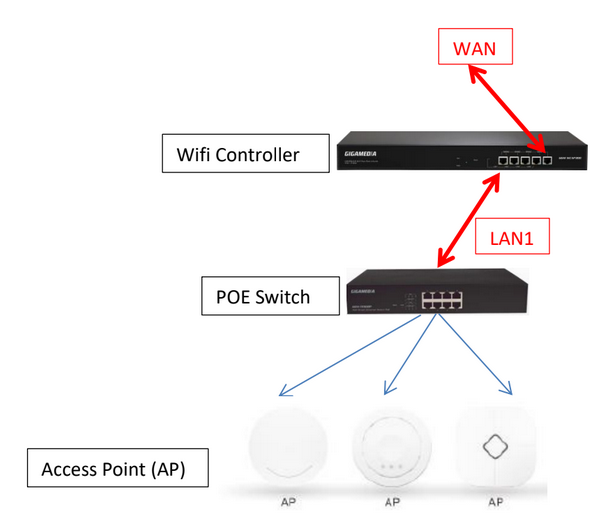
1- Diagram / How to use WIFI Controller
The Wi-Fi controller allows the deployment and the easy and fast management of several Wifi access
points (AP) in your network.
Wireless network management includes real-time control of Access Point (AP) status, quality of
service, and enhanced security policy.
2- Quick Installation
Connect your PC with the LAN Port then login Web Management with Internet Explorer.
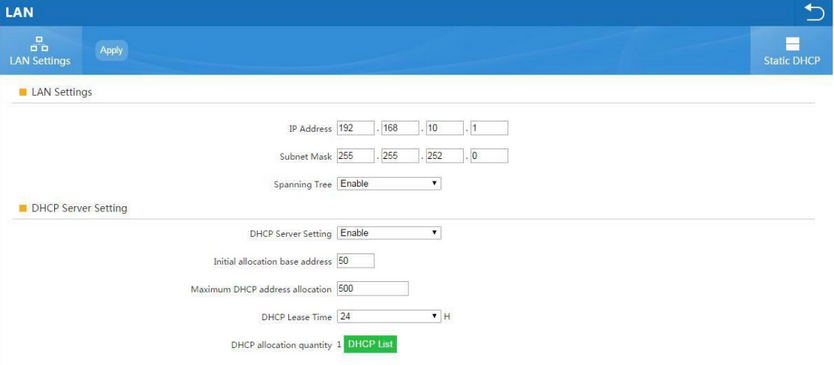
You must configure your PC with a fixed IP address 192.168.10.X (X between 2 and 253)
IP Address by default (LAN): http://192.168.10.1
Identification: admin
Password: admin
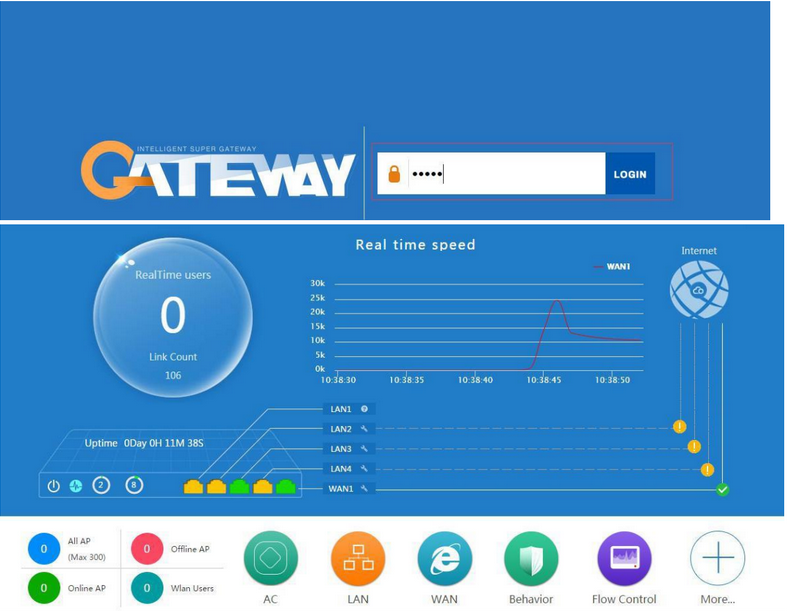
LAN Settings: Tab Gateway then LAN, to modify IP Parameters
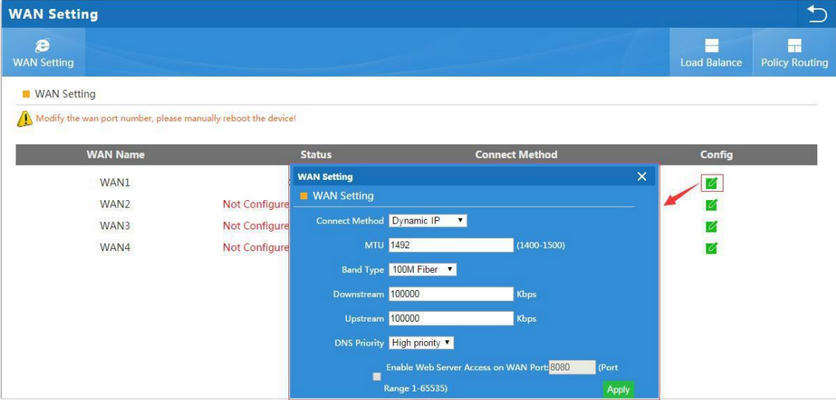
WAN Settings
Please choose your WAN Settings according to your connection Mode:
Manage and integrate Access Point (AP)
2 methods :
a) By Groupes
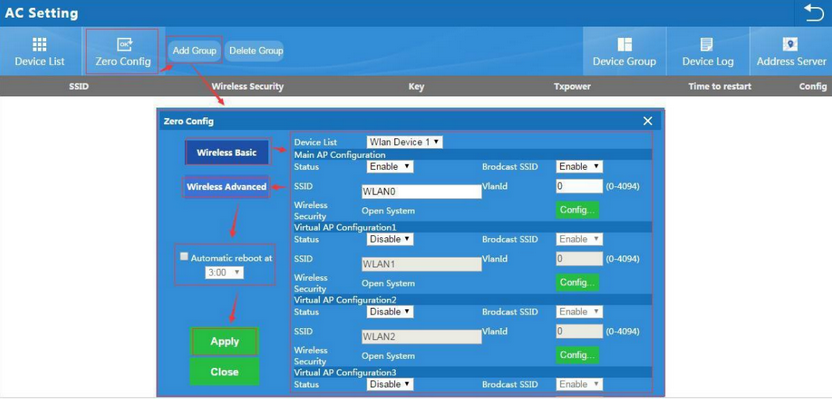
b) Zero Config
Click on AC button, you will see all AP connected into this Wifi Controller.

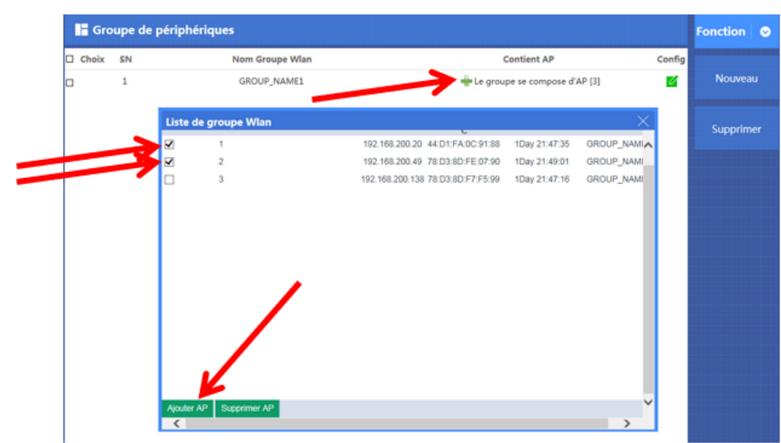
a) Creation of one or more groups
Customize your Wifi Settings for this group :
Status: Enable
SSID: Name of your Wifi
Security: Add a security Key
Add one or more Access Points: Click on 
- Select one or more Access Points to integrate
- Click on Add AP
b) Zero Config - Function Wireless Plug & Play
Zero Config function is the same as creation of groups.
Settings in Zero Config will be the same for all Access Points connected. (Same SSID, same Password,
same channel).
Attention: it is recommended, first, to set the Zero Config before connecting all Access Points.
If not, configuration of Access Points will be enable after restarting it
Manage Access Point
Here, you can use those functions:
- IP Filtering
- Port Filtering
- MAC Filtering
- QoS and Bandwidth Management
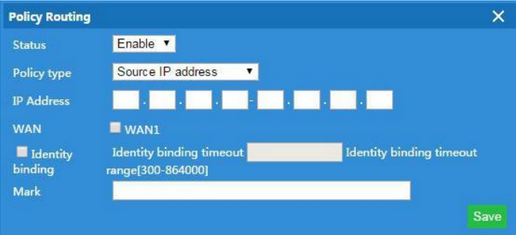
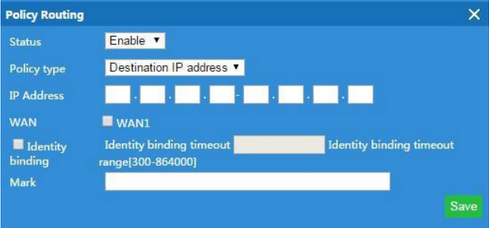
Policy Type:
Source IP Address: Policy based on source IP address
Destination IP address: Policy based on destination IP address
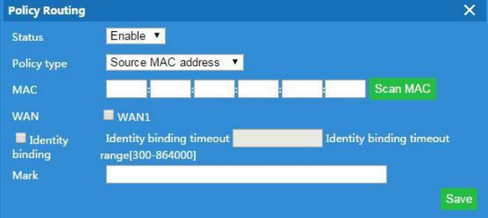
Source MAC address: Policy based on source MAC address
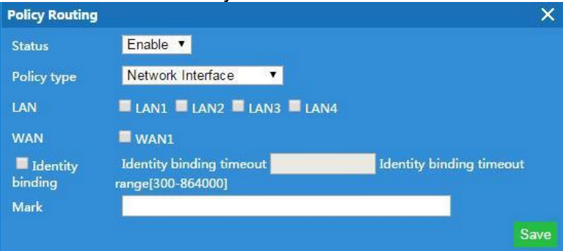
Network Interface: Policy based on router interface
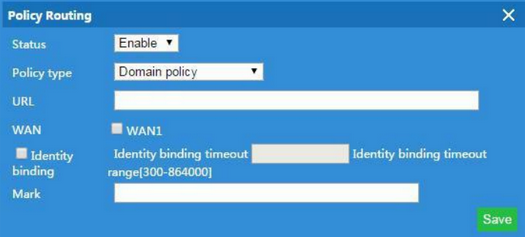
Domain Policy: Policy based on router domain
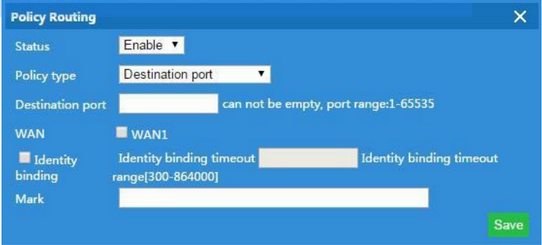
Destination Port: Policy based on destination port.
Flow Control
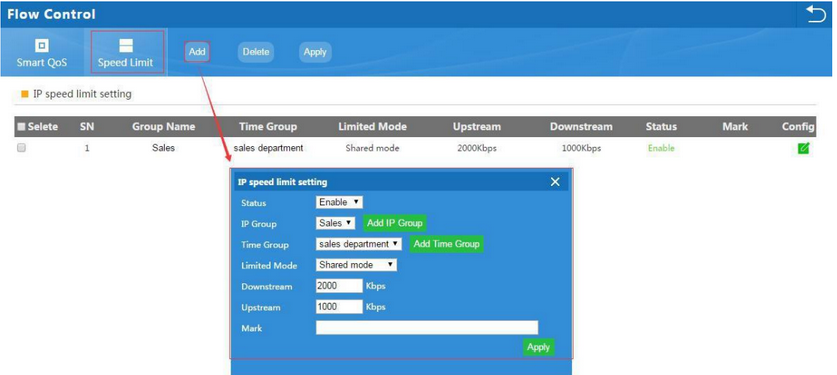
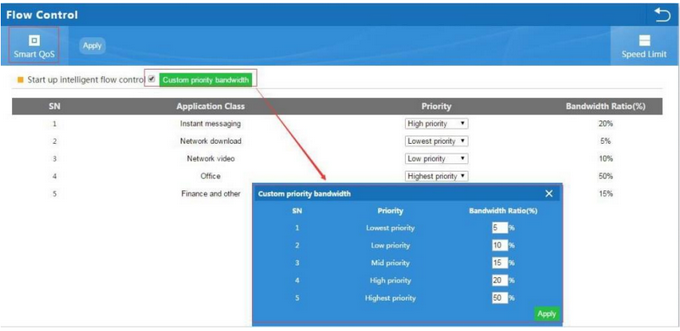
It is including smart QoS and Speed Limit in Flow Control.
Smart QoS
It is set priority bandwidth for application class to make it work freely.
speed Limit
Speed Limit: Mean limit end users Ethernet speed;
Should add IP group first, then choose the limited mode.
Routing
Management
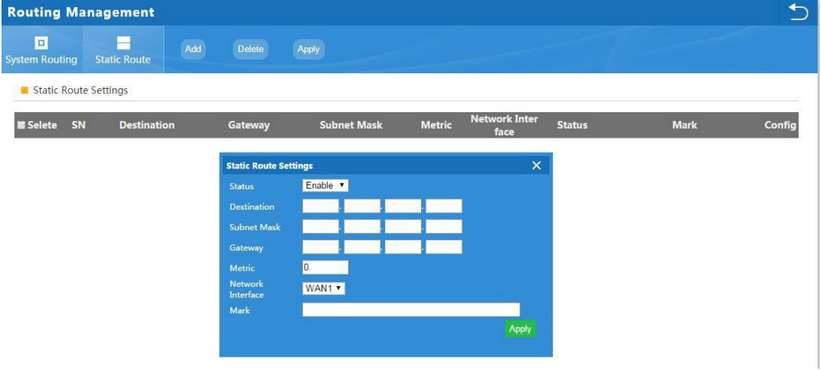
Static Route: add the static router based on destination IP address.
URL Filter
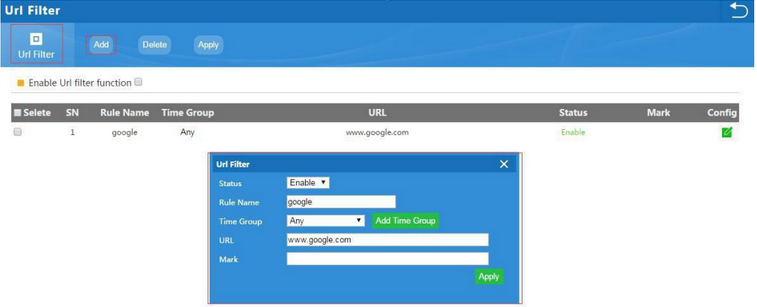
When enable URL filter, the router can reject users to visit the denied URL.
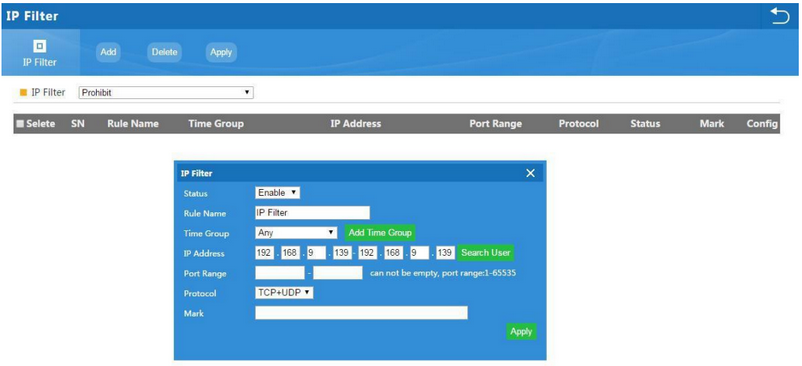
IP Filter
When enable this function, router will allow or limited this IP address to access into this
router based on rules.
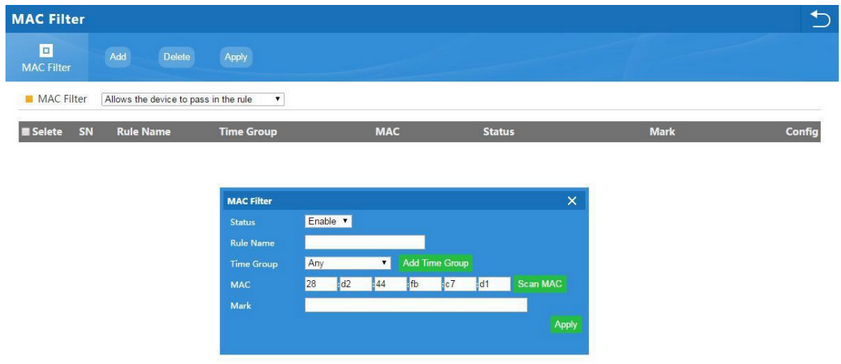
MAC Filter
When enable MAC filter, router will allow or prohibit this MAC address to access into this
router based on rules.
Questa risposta ti è stata utile?
Fantastico!
Grazie per il tuo feedback
Siamo spiacenti di non poterti essere di aiuto
Grazie per il tuo feedback
Feedback inviato
Apprezziamo il tuo sforzo e cercheremo di correggere l’articolo